Visual Studio Code Extension – Search
You can search for metadata when the cluster is running.
In the Neos Studio Explorer view, click the Quick Search button in the right corner of the cluster node name to open the search prompt:

A prompt will appear at the top of the window. Enter a keyword to search for metadata in the cluster. The matching items are listed below the prompt, sorted by relevance, with the type of each item (entity, UI view, server method, ...) displayed next to its name.
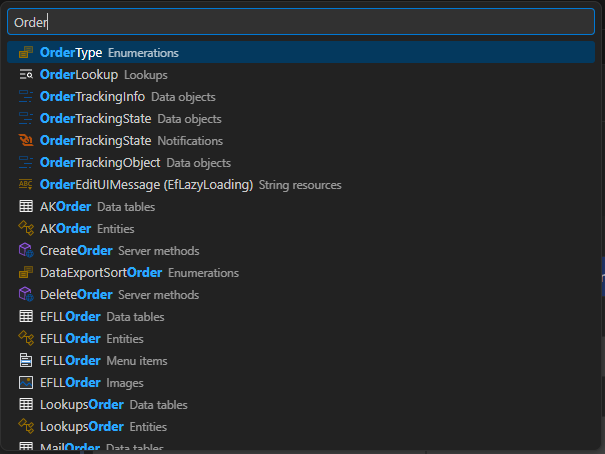
To select an item in the search results, click it to navigate directly to the metadata.
The search matches the name of the metadata. A UI component is also found by the tag used in templates, for example my-component for the MyComponent UI component.
When more than 8 items of the same type match, a View all N items entry is listed for that type: select it to open the full list of that type, filtered by the keyword.
Note
Unlike the search of Neos Studio, the results are not grouped by type: Visual Studio Code sorts them by relevance.
Tip
You can also open the search prompt by using the command Neos Studio: Quick Search (neosexplorer.quickSearch) in the Command Palette (Ctrl+Shift+P).